Running Bots Across Two Monitors: The Workspace Setup That Keeps You From Missing a Disconnect Alert
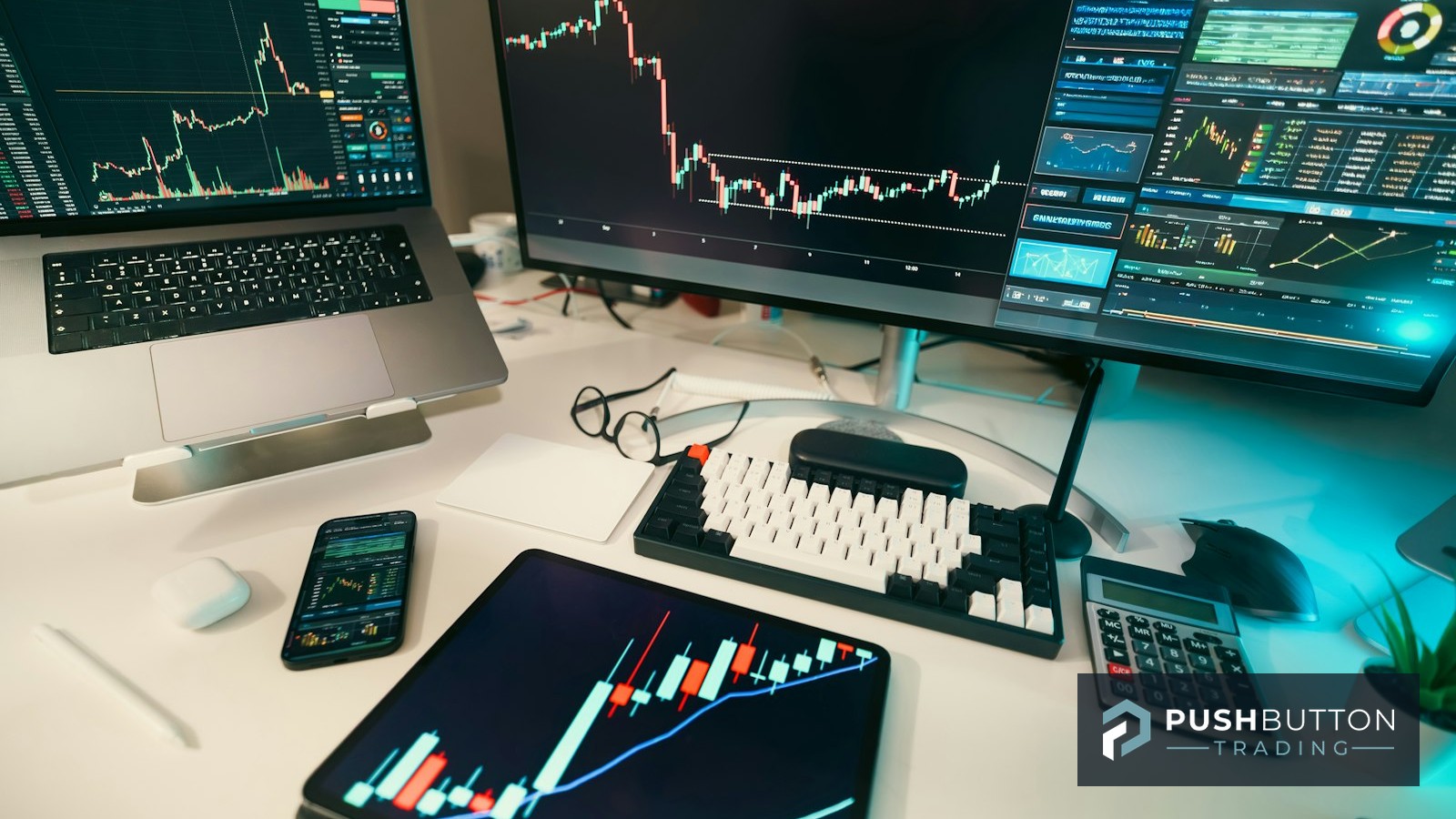
Most traders add a second monitor for more chart real estate. Once you're running bots, that's the wrong reason to do it. The real value of a second screen isn't more charts — it's a dedicated place for the signals you'd otherwise miss while you're looking at the chart your bot is trading. A disconnect banner, a rejected order, an account-level alert: none of those show up in the middle of a candlestick chart, and all of them matter more than the next bar closing.
If your workspace is still "chart on one screen, everything else buried in a taskbar," here's how to rebuild it around the thing a multi-bot setup actually needs: visibility into what the platform is telling you, at all times, without hunting for it.
Why a Buried Alert Is Worse Than No Alert
NinjaTrader doesn't fail silently — it logs disconnects, order rejections, and data feed drops in places like the Log tab, the Alerts Log, and the Control Center's connection indicators. The problem isn't that the information doesn't exist. It's that when every window is stacked behind a maximized chart, a disconnect at 9:47 AM can sit unread until you alt-tab out for an unrelated reason an hour later. For a discretionary trader, that's an annoyance. For a bot that's supposed to manage its own exits, an hour of silence during a live session is the gap where a stop doesn't get placed and a small loss becomes an account-ending one.
This is the same failure mode behind order rejections and disconnect errors going unnoticed — the platform told you, you just weren't looking at the right screen when it did.
Splitting the Two Monitors by Job, Not by Chart Count
The fix isn't "more screens," it's assigning each screen a job and refusing to let that job get crowded out:
- Monitor 1 — the chart your bots trade off of. This stays a maximized chart workspace, nothing else competing for space. If you're running more than one bot on the same instrument, this is also where a Market Analyzer watchlist tiled along one edge earns its space — it's the fastest way to see every bot's instrument at a glance without opening a second chart.
- Monitor 2 — everything the platform is trying to tell you. Control Center with the connection status visible, the Log tab open (not minimized), Account Data showing realized/unrealized P&L and margin, and the Alerts Log if you've set up custom alerts. Nothing on this screen should require a click to reveal — if it's minimized, it's not monitoring anything.
The discipline that makes this work is resisting the urge to throw a second chart on Monitor 2 "just to watch." Every chart you add back to the alert screen is a little bit of the Log tab you've covered up again.
Saving It as a Workspace Template
NinjaTrader lets you save a window layout as a named workspace under Workspace → Save As. Do this once you've got the two-monitor split arranged the way you want, and set it to load on startup (Workspace → Workspace Settings → Autoload) so you're never rebuilding this from scratch after a platform restart or update. This matters more than it sounds — a reconnect after an update is exactly the moment you most need the Log tab visible, and it's also exactly the moment people are most likely to click through a chart-only default layout without a second thought.
If you run bots on more than one account — a funded account alongside a Sim101 test, for example — save a separate workspace for each and label them clearly in the Workspace menu. Loading the wrong one at the start of a session is a quiet way to end up watching the wrong account's Control Center while the other trades unsupervised.
What Actually Belongs on the Alert Screen
Not every window deserves permanent real estate. A practical Monitor 2 layout for a multi-bot setup looks like this:
- Control Center — top-left, always visible, so the connection dot for your data feed and your brokerage link are in your peripheral vision.
- Log tab — expanded, not docked into a tab you have to click to see. This is where disconnects, reconnects, and order state changes actually get written.
- Account Data window — filtered to the account(s) you're trading, showing open positions and today's realized P&L.
- Orders tab — so a rejected or working order shows up as a line item, not just a popup you may have dismissed without reading.
If you've been burned by a stray click creating a phantom manual position on an automated account, this screen is also where that habit gets broken — the Orders tab makes it obvious the instant a manual fill shows up that your bot didn't place.
The Weekly Check That Keeps the Setup Honest
Workspace templates drift. A Windows update changes a monitor's resolution, a new indicator window gets added and never moved, or a third-party add-on panel opens on top of the Log tab and stays there. Once a week — Sunday evening before the new week's session is as good a time as any — reload your saved workspace and confirm the Log tab and Account Data window are still where you left them, not buried under something you opened mid-week and forgot to close. It's a two-minute check, and it's the difference between a workspace that protects you and one that used to.
Set It Up Once, Trust It All Week
A two-monitor setup built around visibility rather than chart count is one of the cheapest risk controls available to anyone running bots unattended — it costs a few minutes of one-time setup and zero dollars if you're already running two screens. Build the split, save it as your default workspace, and check it weekly. For more on building a bot portfolio that holds up to real market conditions — not just a clean workspace — visit pushbuttontrading.co.